Getting locked out of a computer when you are miles away is an absolute nightmare. For years, TeamViewer was the automatic answer to that problem, allowing users to control devices, transfer files, and provide technical support from anywhere. Lately, that reliable solution feels more like a roadblock.
Millions of users are actively searching for a reliable TeamViewer alternatives due to rising frustrations. Personal users are tired of getting hit with sudden “commercial use suspected” flags that cut off connections mid task. Meanwhile, small businesses and IT teams are struggling to justify steep pricing structures, restrictive licensing models, and unexpected connection limits.
The good news is that remote access technology has come a long way. If you need better performance, tighter security, or a budget friendly solution, you have plenty of incredible choices. This guide ranks and compares the best remote desktop software available today, covering both free tools and premium options to help you find the perfect match for your workflow.
What Is TeamViewer and Why People Are Leaving It in 2026
TeamViewer is a remote access tool that lets users view and control distant computers over the internet. Major benefits include cross platform compatibility, high security standards, and a user friendly interface. It became the industry standard for remote IT support tools because of its simplicity and global server network.
Despite these perks, users are migrating to other platforms rapidly. Common complaints revolve around sudden account timeouts and rigid subscription plans. Cost concerns are prominent because basic commercial plans start at high monthly rates, pushing out independent contractors.
Commercial use detection issues also frustrate personal users, as the software often incorrectly flags non commercial activity and instantly cuts the connection. Furthermore, performance and security considerations drive organizations to seek business remote access solutions that offer lighter resource usage, lower latency, and highly customizable security policies.
Why Consider a TeamViewer Alternatives In 2026
Switching your remote desktop software can unlock numerous advantages for your daily workflow. Exploring a different tool helps you find features tailored specifically to your exact support needs.
- Lower cost options: Many competitors offer flat rate pricing or cheaper monthly plans that fit tight budgets much better than expensive corporate licenses.
- Better security protocols: Alternative tools often provide advanced, customizable security features like self hosted servers or open source auditing to keep your data private.
- Improved performance metrics: Some lightweight software options use proprietary video codecs to deliver much faster streaming and lower latency on weak internet connections.
- Unattended remote access: Several alternatives include generous unattended access limits, allowing you to connect to offline or unstaffed devices anytime you need.
- Enterprise management tools: Growing companies can find platforms with superior mass deployment tools and deep integrations with their existing helpdesk ticketing systems.
- Cross platform support: Many modern tools allow seamless connections between Windows, Mac, Linux, and mobile devices without requiring extra paid add ons.
- Free alternatives available: Casual users can utilize completely free online tools that offer more than enough power for simple family IT support and personal remote work.
What To Look For In a Remote Desktop Tool :-
Finding the perfect remote access software requires careful eval\uation of its core capabilities. Keep these essential features in mind while shopping around for a new platform.
- End to end encryption: Ensure your chosen software scrambles all transmitted data so third parties cannot intercept your sensitive information or passwords.
- Unattended remote access: Look for the ability to log into host computers securely without requiring a human to click an accept button on the other side.
- File transfer capabilities: Verify that the software allows fast, secure file sharing between your local device and the remote machine without external cloud storage.
- Cross platform compatibility: Ensure the software functions correctly across all major operating systems used within your personal or corporate office network.
- User management portals: Look for centralized admin dashboards where managers can easily assign roles, group devices, and restrict technician permissions.
- Performance optimization settings: The tool should let you lower visual quality manually to maintain a stable, responsive connection during periods of poor network health.
Quick Comparison Table: Best TeamViewer Alternatives In 2026
| Tool | Best For | Free Plan | Starting Price | Operating Systems | Rating |
| AnyDesk | Fast connections | Yes | $28.90/month | Windows, Mac, Linux, Mobile | 4.6/5 |
| Chrome Remote Desktop | Quick browser access | Yes | Free | Web, Windows, Mac, Linux | 4.4/5 |
| HelpWire | Free IT support | Yes | Free | Windows, Mac, Linux | 4.8/5 |
| Splashtop | Small business teams | No | $6.00/month | Windows, Mac, Linux, Mobile | 4.8/5 |
| RemotePC | Affordable scalability | No | $29.50/year | Windows, Mac, Linux, Mobile | 4.7/5 |
| LogMeIn Pro | Power users | No | $30.00/month | Windows, Mac | 4.5/5 |
| ConnectWise ScreenConnect | MSPs and helpdesks | Yes | $30.00/month | Windows, Mac, Linux, Mobile | 4.7/5 |
| Zoho Assist | Cloud based support | Yes | $10.00/month | Windows, Mac, Linux, Mobile | 4.6/5 |
| Remote Utilities | System administrators | Yes | $29.00/lifetime | Windows, Mac, Linux, Mobile | 4.6/5 |
| RustDesk | Self hosted privacy | Yes | Free | Windows, Mac, Linux, Mobile | 4.7/5 |
| DWService | Open source web access | Yes | Free | Windows, Mac, Linux | 4.5/5 |
| Supremo | Portable remote access | Yes | $11.00/month | Windows, Mac, Linux, Mobile | 4.5/5 |
| ISL Online | High security IT | No | $34.90/month | Windows, Mac, Linux, Mobile | 4.8/5 |
| UltraVNC | Local network access | Yes | Free | Windows | 4.3/5 |
| Microsoft Remote Desktop | Native Windows access | Yes | Free | Windows, Mac, Mobile | 4.4/5 |
List Of Best TeamViewer Alternatives
1. AnyDesk – Best for Fast Connections

Website: anydesk.com
AnyDesk is widely praised for its exceptional speed and low latency, making it a top contender among TeamViewer competitors. Built on the proprietary DeskRT codec, it ensures smooth screen sharing even in low bandwidth environments. It offers a lightweight client that requires no installation to run. Businesses appreciate its robust security features, including military grade encryption. It remains a top choice for individuals and IT teams needing reliable, high performance remote support.
Key Features
- Fast proprietary codec
- Military grade encryption
- Custom client branding
- Session recording options
- Unattended device access
Pros
- Extremely low latency
- Very lightweight application
- Cross platform compatibility
- Easy file transfers
Cons
- Strict commercial detection
- Occasional connection drops
- Support response delays
- Confusing plan limits
Pricing
- Free Plan (Personal use)
- Solo Plan: ₹1,080/month
- Standard Plan: ₹1,536.80/month
- Advanced Plan: ₹3,428.80/month
- Ultimate Plan: Custom Pricing
2. Chrome Remote Desktop – Best for Quick Browser Access

Website: remotedesktop.google.com
Chrome Remote Desktop provides a highly accessible way to control computers remotely using just a web browser. Developed by Google, this tool requires only a Google account and a browser extension to function. It is completely free and supports Windows, Mac, and Linux environments. It is perfect for personal users needing quick access to their home computer or helping family members. While it lacks advanced enterprise features compared to a TeamViewer alternatives, its sheer simplicity makes it incredibly popular
Key Features
- Web browser access
- Google account integration
- Simple pin authentication
- Cross platform support
- Mobile companion application
Pros
- Completely free forever
- Extremely easy setup
- No extra software
- Secure Google infrastructure
Cons
- Lacks file transfer
- No session recording
- Limited multi monitor
- No advanced management
Pricing:
- Free Plan (All features included)
3. HelpWire – Best for Free IT Support
Website: www.helpwire.app/
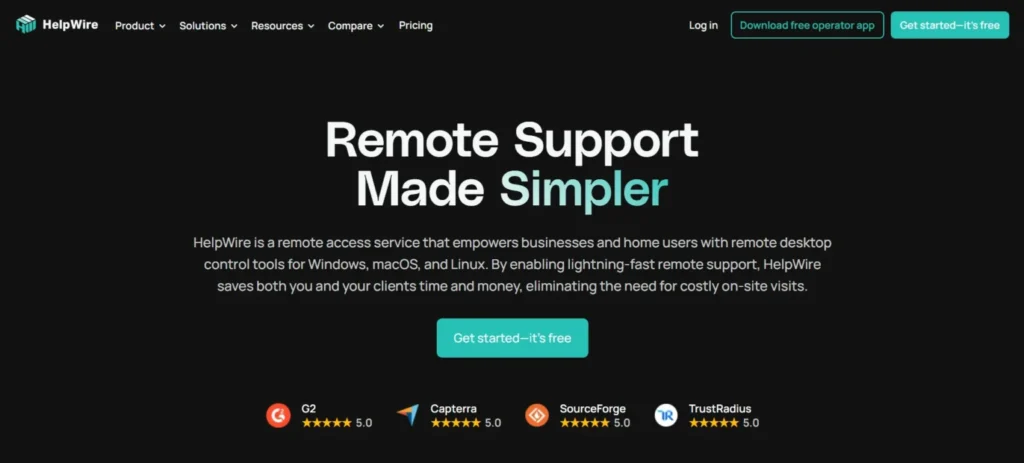
HelpWire is a completely free, fast, and secure remote desktop tool tailored for IT support professionals and small businesses. It allows technicians to connect to client devices seamlessly without complicated setups. The platform offers essential features like file transfer, chat, and multi monitor support at no cost. It is an excellent secure remote desktop alternative for teams that want professional grade capabilities without the heavy monthly subscriptions associated with traditional enterprise tools.
Key Features
- Zero configuration setup
- Unattended device access
- Multi monitor navigation
- Direct file transfer
- Built in support chat
Pros
- Completely free tool
- Very user friendly
- No client installation
- Fast connection speeds
Cons
- Newer software product
- Missing advanced integrations
- Limited reporting tools
- Linux support pending
Pricing:
- Free Plan (All features included)
4. Splashtop – Best for Small Business Teams

Website: splashtop.com
Splashtop is a highly secure and cost-effective alternative that caters specifically to business professionals, IT teams, and managed service providers. It delivers high-definition video and audio streaming, making it ideal for creative professionals needing exact remote rendering. Splashtop stands out for its straightforward pricing structure and excellent customer service. It complies with strict industry regulations like HIPAA, ensuring secure data handling across all active remote access sessions as a TeamViewer alternatives.
Key Features
- High definition streaming
- Strict compliance standards
- Endpoint management tools
- Drag and drop transfer
- Multi monitor support
Pros
- Exceptional video quality
- Highly secure infrastructure
- Budget friendly pricing
- Excellent customer support
Cons
- Confusing product tiers
- Mobile app limitations
- Interface feels outdated
- Occasional lag spikes
Pricing
- Solo Plan: $6.00/month
- Pro Plan: $8.25/month per user
- Performance Plan: $13.00/month per user
- Enterprise Plan: Custom Pricing
5. RemotePC – Best for Affordable Scalability
Website: remotepc.com
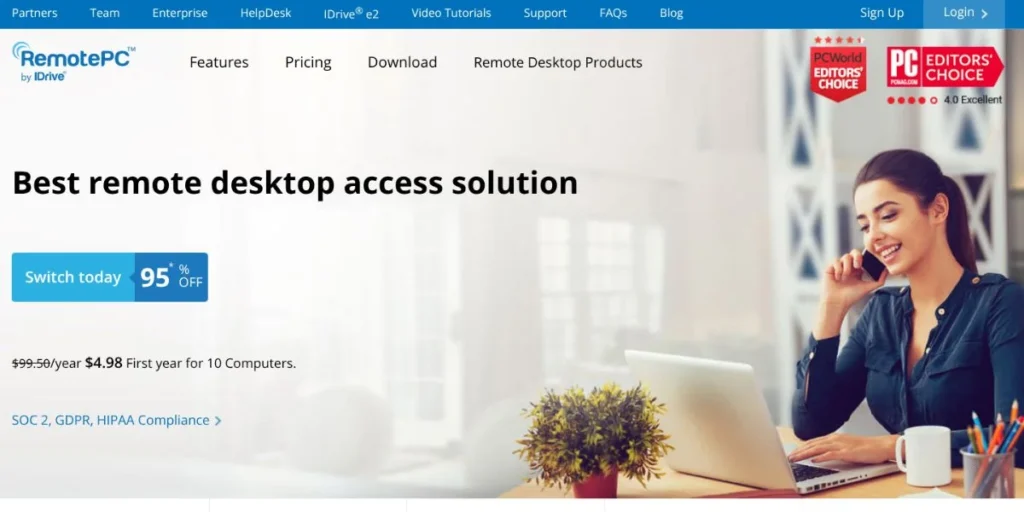
RemotePC is a cloud based remote desktop solution recognized for its highly aggressive pricing and easy scalability. It serves everyone from individual consumers to massive corporate enterprises. Users can access remote computers through the web or dedicated apps. It includes collaborative features like whiteboard drawing and text chat. The platform also offers automated backup features through its parent company. It is highly recommended for businesses needing bulk computer access on a tight budget.
Key Features
- Always on access
- Web browser access
- Whiteboard drawing tools
- Remote mass deployment
- Detailed activity logs
Pros
- Extremely low prices
- Highly scalable plans
- Easy team management
- Reliable performance metrics
Cons
- Interface lacks polish
- Complex initial setup
- Mobile navigation awkward
- File transfer glitches
Pricing
- Solo: $1.84/Month
- Pro Plan: $6.22/month
- Team Plan: $18.72/month
- Enterprise Plan: $37.47/month
6. LogMeIn Pro – Best for Power Users

Website: logmein.com
LogMeIn Pro is a premium remote access software designed for professionals who require robust functionality and high reliability. It provides seamless remote control, fast file sharing, and detailed system management tools. Each plan generously includes complimentary antivirus licenses and LastPass password manager accounts. While it is one of the more expensive tools on the market, it delivers high end performance and extensive security settings. It is heavily favored by established corporate environments.
Key Features
- Included antivirus software
- Password management bundle
- Remote cloud printing
- Multi monitor display
- One terabyte storage
Pros
- Highly reliable connections
- Excellent bundled software
- Deep security settings
- Great printing support
Cons
- Very high price
- Steep learning curve
- Heavy resource usage
- Strict device limits
Pricing
- Individuals Plan: $30.00/month
- Power Users Plan: $70.00/month
- Small Businesses Plan: $129.00/month
7. ConnectWise ScreenConnect – Best for MSPs and Helpdesks

Website: connectwise.com
ConnectWise ScreenConnect,formerly known as ConnectWise Control, is an industry-leading remote support solution heavily utilized by IT professionals and integrates seamlessly with help desk software. It offers deep customization, allowing companies to brand the client interface entirely. The software excels in unattended remote access and silent background management, meaning technicians can fix issues without disrupting the end user. Its powerful extension marketplace allows system administrators to integrate it perfectly into existing business remote access solutions. It is widely considered a strong TeamViewer alternatives due to its enterprise-grade control and flexibility.
Key Features
- Silent background access
- Deep custom branding
- Extension marketplace integrations
- Advanced reporting tools
- Role based security
Pros
- Highly customizable interface
- Extremely stable connections
- Powerful admin tools
- Great integration options
Cons
- Expensive for individuals
- Interface feels complex
- Steep learning curve
- Support can lag
Pricing
- Free trial available
- Pricing available on request
8. Zoho Assist – Best for Cloud Based Support

Website: www.zoho.com/assist/
Zoho Assist is a cloud based remote support and access software that requires no prior client installation. It integrates seamlessly with the broader Zoho ecosystem and other popular helpdesk ticketing systems. It is highly optimized for providing on demand technical support to customers globally. It features robust voice and video chat capabilities, making communication during support sessions effortless. It is a fantastic choice for customer service teams needing reliable browser troubleshooting tools.
Key Features
- Browser based sessions
- Voice and video
- Helpdesk ticketing integration
- Unattended deployment tools
- Custom domain mapping
Pros
- No installation required
- Great Zoho integrations
- Affordable pricing tiers
- Easy customer connection
Cons
- Occasional browser lag
- Limited offline features
- File transfer delays
- Basic reporting tools
Pricing
- Free Plan (Basic features)
- Standard Support Plan: ₹400/month
- Professional Support Plan: ₹600/month
- Enterprise Support Plan: ₹960/month
- Unattended Access Plans: Starting at ₹400/month
9. AnyViewer – Best for System Administrators
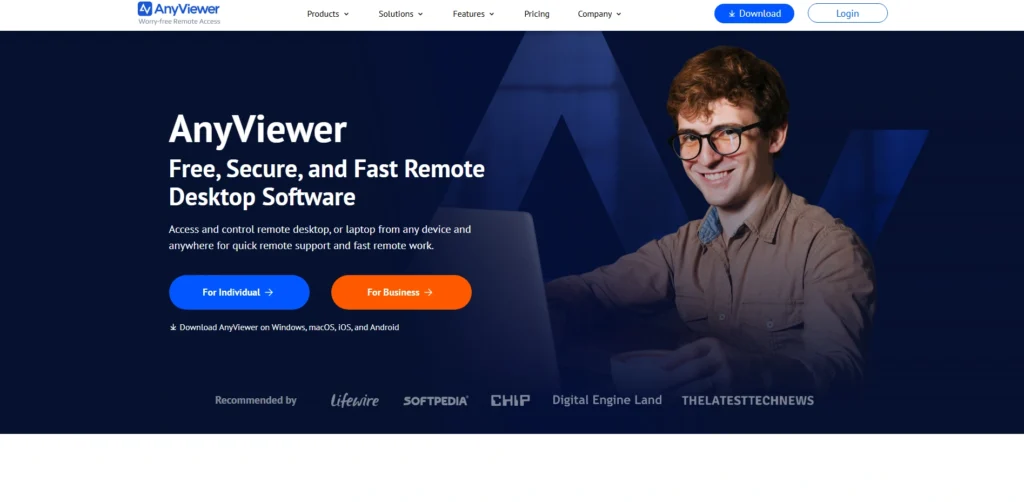
Website: anyviewer.com
AnyViewer is a fast, secure, and highly scalable remote desktop software ideal for system administrators and IT support teams. It provides seamless cross-platform desktop control, robust unattended access, and fast file transfers. As a TeamViewer alternatives, the software utilizes advanced video encoding to deliver ultra-low latency performance, ensuring smooth operations even on slower internet connections.
System administrators particularly appreciate its centralized device management, role-based permissions, and strict end-to-end encryption protocols that keep corporate data completely secure during remote sessions.
Key Features
- Unattended remote access
- Centralized device management
- Fast file transfers
- Multi monitor navigation
- End to end encryption
Pros
- Generous free version
- Very easy setup
- Fast connection speeds
- Secure ECC encryption
Cons
- No Linux support
- Mac features limited
- Occasional login interruptions
- Mobile application bugs
Pricing
- Free Plan (Basic use)
- Single user Plan: $47.88/year
- Teams Plan: $191.88/year
- Enterprise Plan: $311.88/year
10. RustDesk – Best for Self Hosted Privacy
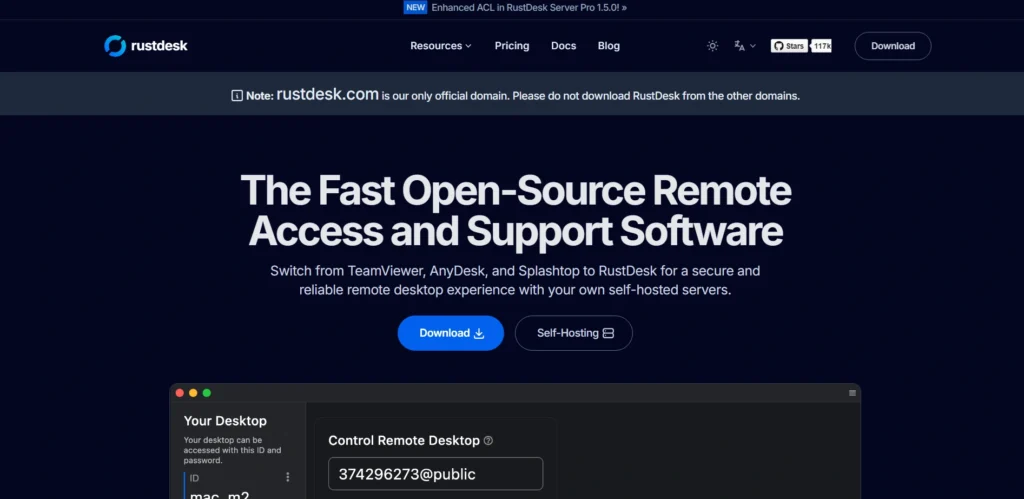
Website: rustdesk.com
RustDesk is an open source remote desktop alternative that prioritizes user privacy and data ownership. It allows tech savvy users and businesses to set up their own rendezvous server, ensuring that connection data never passes through a third party.
The client is lightweight and visually mimics familiar tools, making the transition incredibly easy. Because it is open source, it is continuously improved by the developer community and serves as a fantastic modern replacement tool.
Key Features
- Open source code
- Self hosted server
- End to end encryption
- Lightweight portable client
- Cross platform functionality
Pros
- Total data privacy
- Completely free core
- Active community development
- Very fast setup
Cons
- Requires technical knowledge
- Documentation is sparse
- Server maintenance required
- Missing enterprise tools
Pricing
- Free Open Source Plan
- Individual Self Hosting Pro: $9.90/month
- Basic Self Hosting Pro: $19.90/month
- Customized Plan: $19.90 /month for 10 login users
11. DWService – Best for Open Source Web Access

Website: dwservice.net
DWService is an open source project that provides remote access to systems securely through a standard web browser. It requires installing a lightweight node on the host machine, which then connects to the central cloud framework. It allows users to manage files, view the screen, and access the command line without opening router ports. It operates on a donation based model, offering maximum bandwidth to premium subscribers while keeping basic features entirely free.
Key Features
- Web based portal
- Command line interface
- System resource monitoring
- Text editor access
- Open source architecture
Pros
- Free open source
- Browser access anywhere
- Great Linux support
- Secure connection protocols
Cons
- Interface looks dated
- Bandwidth limits apply
- Slight visual lag
- Limited customer support
Pricing
- Free Plan (Limited bandwidth)
- Supporter Plan: Custom donations starting at $3.00/month
12. Supremo – Best for Portable Remote Access

Website: supremocontrol.com
Supremo is a lightweight, portable remote desktop software that requires no complex installation or router configuration. Users simply download the executable file and launch it to start a session immediately. It is an excellent tool for quick tech support or personal remote work. It is a strong TeamViewer alternatives for users who want simplicity and fast deployment. Supremo offers customizable interfaces so businesses can display their own distinct logos. It uses secure data transfer protocols and offers highly competitive pricing for commercial office environments.
Key Features
- Portable executable file
- Custom logo branding
- Unlimited active endpoints
- Meeting sharing mode
- Automated mass deployment
Pros
- No installation needed
- Very easy usage
- Affordable commercial licenses
- Good visual performance
Cons
- Basic feature set
- Limited Mac support
- Few integration options
- Clunky file transfer
Pricing
- Free Plan (Personal use)
- Solo Plan: €8,17/mo for 1 year
- Business Plan: €14,84/mo for 1 year
- Professional Plan: €31,42/mo for 1 year
13. ISL Online – Best for High Security IT

Website: islonline.com
ISL Online delivers highly secure and reliable remote desktop support tailored for large enterprises and strict regulatory environments. It offers flexible deployment options, including cloud, self hosted, and dedicated private server configurations.
The software supports transparent unattended access and extensive session recording features. Known for its exceptional network uptime and responsive technical support, ISL Online is a premium choice for banks, healthcare providers, and major government institutions.
Key Features
- Maximum security standards
- Self hosted options
- Transparent session recording
- Multi session handling
- Deep granular permissions
Pros
- Exceptional security protocols
- Very reliable connections
- Flexible deployment models
- Great customer support
Cons
- Higher pricing tier
- Complex admin portal
- Overkill for individuals
- Steep learning curve
Pricing
- Pay As You Go: $145.00/500 minutes
- Cloud License: $34.90/month
- Self Hosted License: $44.90/mo
- Enterprise Plan: $99.90/mo
14. UltraVNC – Best for Local Network Access

Website: uvnc.com
UltraVNC is a classic, free, open source remote access software designed specifically for Windows operating systems. It uses the VNC protocol to display the screen of another computer over a local network or the broader internet. It is highly favored by network administrators who need direct, no frills control over local internal machines. While it requires port forwarding for external internet access, it remains an incredibly powerful tool for isolated internal office networks.
Key Features
- VNC protocol based
- Active directory integration
- Text chat functionality
- Clipboard sharing tools
- File transfer capabilities
Pros
- Completely free tool
- Great local performance
- Highly customizable settings
- Very lightweight application
Cons
- Windows OS only
- Requires port forwarding
- Outdated user interface
- No official support
Pricing:
- Free Plan (All features included)
15. Microsoft Remote Desktop – Best for Native Windows Access
Website: microsoft.com
Microsoft Remote Desktop is built directly into Windows Pro and Enterprise editions, providing a seamless and highly optimized remote access experience. Since it is native to the operating system, it offers unparalleled performance and integration for Windows users. It supports network level authentication and allows access from Mac, iOS, and Android client devices. It is a widely used TeamViewer alternatives for internal corporate networks needing secure, high-speed access to Windows workstations.
Key Features
- Native Windows integration
- Network level authentication
- Seamless clipboard sync
- Remote audio playback
- High performance streaming
Pros
- Completely free tool
- Exceptional native performance
- Highly secure environment
- Native software only
Cons
- Requires Windows Pro
- Complex internet setup
- Missing Mac host
- Lacks chat support
Pricing:
- Free Plan (Included with Windows Pro/Enterprise)
Free vs Paid TeamViewer Alternatives: Which One Should You Choose?
Deciding between a free or premium remote access tool depends heavily on your usage frequency and specific feature requirements. Consider this simple breakdown to guide your final choice.
| Feature | Free Tools | Paid Tools |
| Remote Access | Basic view and control | Advanced multi monitor and HD |
| Security | Standard encryption | Granular permissions and SSO |
| Performance | Subject to bandwidth limits | Dedicated servers and high FPS |
| File Transfer | Basic or nonexistent | Fast drag and drop transfer |
| Team Support | Single user focus | Centralized admin dashboards |
| Scalability | Limited endpoints | Unlimited unattended devices |
Personal users, students, and family tech support providers should definitely choose free tools. Options like Chrome Remote Desktop or HelpWire provide more than enough functionality for quick troubleshooting. Conversely, IT managed service providers, medium to large businesses, and daily remote workers should invest in paid tools. Premium options offer the security, compliance, and reliability required to keep business operations running smoothly without costly interruption.
How To Choose tThe Right Remote Desktop Software
Selecting the best remote desktop software requires a systematic approach to ensure it meets your specific workflow needs. Follow these simple steps to make an informed decision.
1. Define Your Use Case
Identify exactly why you need the software. Ask yourself if you are providing IT support to clients, accessing your office PC from home, or managing a vast network of corporate servers. Your core objective dictates the exact type of tool you need.
2. Consider Device Compatibility
Check the operating systems used across your network. Ensure the chosen tool fully supports Windows, Mac, Linux, and any necessary mobile platforms. Cross platform compatibility is vital for diverse, modern IT environments.
3. Evaluate Security Features
Security is non negotiable when accessing computers remotely. Look for platforms offering end to end encryption, two factor authentication, and strict user permission settings to prevent unauthorized access.
4. Compare Pricing
Analyze the varying pricing models carefully. Decide whether a monthly subscription, annual commitment, or lifetime license fits your company budget. Pay special attention to user limits and hidden fees for extra devices.
5. Test Performance
Take full advantage of free trials before purchasing. Test the connection speed, video latency, and file transfer reliability under normal working conditions. A tool that lags constantly will quickly ruin your team productivity.
6. Review Scalability
Think about your future business growth. Ensure the software allows you to easily add new technician seats or deploy the client to hundreds of new endpoints without massive price hikes or complex migrations.
7. Check Support Options
Verify the available customer support channels. When a remote connection fails during a critical moment, you need fast access to phone, chat, or email support to resolve the major issue quickly.
RemotePC is widely recognized as the most affordable premium alternative available today. Its consumer and SOHO plans offer advanced enterprise level features at a fraction of the cost of traditional remote desktop software tools.
Conclusion
Choosing the ideal remote access tool depends entirely on your specific workflow needs. For the best overall experience, AnyDesk offers exceptional speed and cross platform reliability for individuals and professionals alike. If you need a completely free solution for everyday technical help, HelpWire delivers robust remote IT support tools without frustrating commercial use limits or sudden timeouts.
Businesses seeking a secure balance of high definition streaming and fair pricing should choose Splashtop, while IT helpdesks will benefit most from the deep customization and silent background management of ConnectWise ScreenConnect. Finally, RemotePC stands out as the most budget friendly choice for growing teams. Assess your primary technical requirements, test your top choices, and select the tool that keeps your remote connections fast, secure, and seamless.