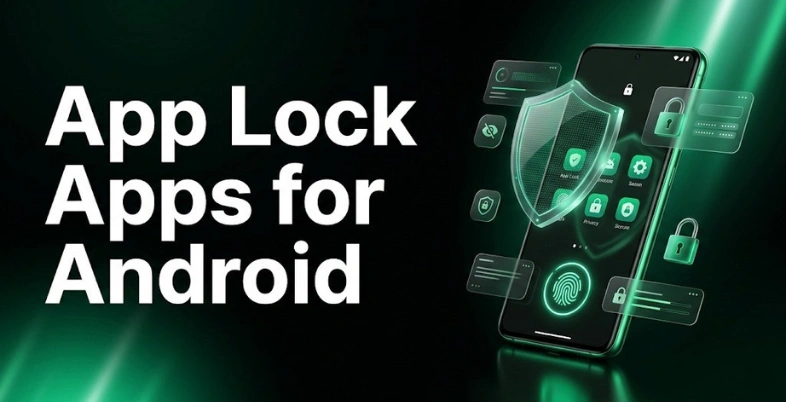
Your smartphone stores personal chats, photos, social media accounts, banking apps, and important files, so keeping them secure is more important than ever. App Lock Apps for Android help protect your private apps with a PIN, password, pattern, or fingerprint lock, giving you extra privacy and security.
Whether you want to lock WhatsApp, Instagram, Gallery, or payment apps, the best app lock apps offer strong protection, easy-to-use features, and complete peace of mind for your daily smartphone use.
What Is An App Lock App? (And Why You Need One in 2026)
An app lock app is an application that allows you to set a PIN, pattern, password or fingerprint/Face ID lock on individual applications, rather than the phone’s lock screen.
Lock apps such as WhatsApp, Instagram, Gallery, banking apps, UPI/wallets, email, and even Settings so no one can open these apps without your consent.
Why You Need One?
- Additional level of security: If someone knows your phone unlock code, they can only access your public messages—such as text messages, photos, and emails—but not your private ones due to their separate locking.
- Protects your financial and UPI apps: As online banking and UPI payments rise in 2026, locking wallet and banking apps helps reduce security risks if someone temporarily accesses your smartphone. Using trusted cybersecurity tools can further improve protection against malware and online threats.
- When sharing your phone, you can be safe.You can be safe when sharing your phone.App lock helps prevent children, parents or friends from opening sensitive applications when they have borrowed your phone for a call, game or even watching youTube.
- Hides personal pictures and documents:A lot of app lock software features a secure vault that will help you stash private photos, videos or files out of your standard gallery or file manager.
- Prevents unauthorised access to notifications: Newer app lock features like blurring/hiding content on notifications ensure that no private information is leaked on your lock screen or notification bar.
- Advice to ward off spying and shady programs: Having an app lock puts yet another barrier in front of your data when an app is trying to open another app or when data is being looked into.
- Suitable even if the built-in phone locks are used: Android and iOS are adding app lock features inside the OS, but an app lock app can provide more control, such as fake covers, intruder selfies, and user-defined rules for locking apps.
- Peace of mind in public places:For those who have to use their mobile devices at work, college, or co‑working areas, app lock will cut back the anxiety of anyone easily peeking at what you’re doing when your back is turned.
What Happens When You Lock an App?
If an application is locked, then the application security check will be performed when the app is opened, and the user will be prompted for a password, PIN, pattern, or fingerprint/face verification. This forms a protective barrier for certain applications, and not the entire phone.
This option can be helpful when parents give their children a mobile phone, when people share a mobile phone with friends or family, or if someone wishes to have more privacy from coworkers or others nearby. It often occurs with sensitive apps such as banking, emails, photos, social media, or health apps.
App locking is straightforward in reality – you select the applications, the way to lock them, and the phone will prompt again for authentication the next time the user attempts to open one of those applications.
What to Look for In the Best App Lock For Android
The most important features of the best app lock for Android are that it is easy to use, secure, and not obtrusive. Here are the following things to look out for before selecting one.
- Strong lock options. See if there’s PIN, pattern, fingerprint, or face unlock so you can select the one you find easiest and safest.
- Intruder selfie feature. A decent application lock can catch a shot when somebody types the incorrect password, which aids you in detecting snoopers.
- Anti-uninstall protection. That way, others won’t be able to delete the app with ease, keeping your privacy secure.
- Lightweight performance. Choose one that won’t slow down your phone or consume too much battery, especially if you already use other security cleanup tools on your device for additional protection.
- Minimal and Private permissions. A well-designed AppLock app should not demand more permissions than necessary. Many users also rely on website vulnerability scanners to identify potential security risks and improve overall cybersecurity awareness
- No annoying ads. Excessive advertisements can cause the app to become cluttered and less functional.
- Easy to use. The app should have an easy setup with easy settings and quick locking of apps.
List Of Best App Lock Apps for Android in 2026
1. Samsung’s Secure Folder — Best built-in option for Samsung users
- Download Link: https://play.google.com/store/apps/details?id=com.knox.securefolder
- Rating: 3.4/5
- Price: Free
Samsung Knox provides a secure folder on Samsung Galaxy devices, which is an encrypted storage area where sensitive apps and data are kept separate from the rest of the Samsung Galaxy device. The folder is itself locked, and can only be opened by the user with a PIN number, password, pattern or his/her fingerprint/face. The apps installed and moved to Secure Folder will execute in a sandboxed environment and will have a distinct account from the existing apps.
The Secure Folder icon can be hidden from the home screen, I mean, not to be easily seen by others. Content in files, photos, videos and documents within are encrypted and cannot be accessed by other apps and users. Secure Folder allows to move data in/out and back up the contents of Secure Folder to your Samsung account to recover it. Secure Folder can take an intruder’s selfie, or record failed unlock attempts for some devices and configurations to help identify the intruder’s device.
Key features:
- Encrypted private space
- Samsung Knox protection
- App storage and file storage.
- Passcode or biometrics
- Separate app accounts
- Hidden device space
Pros:
- Strong privacy protection
- Easy to use
- Uses many documents
- Supports biometric lock
Cons:
- Samsung devices only
- Limited ecosystem use
- However, some users might be confused when they use this setup.
- Not cross-platform
2. Pixel Private Space — Best for Pixel phones

- Download link: https://play.google.com/store/apps/
- Rating:4.4/5
- Price: Free
Private Space will provide you with a private area on your Pixel phone that is shielded from applications you don’t wish to share.It does NOT lock ALL apps on the phone in the entire phone, rather it specifies which apps reside in the private area. Those apps won’t be visible on the app list or recent apps screen when locked. It has additional authentication, meaning that you need to unlock the space before opening the apps held in it.
It is similar to a “sandboxed” second profile that can be used to isolate private apps and data from everything else on the phone. Background running apps in it cease to run upon locking.Suitable for hiding sensitive applications, files, and media in a single location. It’s not an intruder-selfie app, but rather a privacy tool: it does not take a picture of someone trying to open a photo.
Key features
- Hide selected apps
- Separate locked space
- Extra authentication required
- Invisible when locked
- Blocks background running
- Search to open it
Pros
- Strong app privacy
- Easy app separation
- Cleaner app drawer
- Built into Pixel
Cons
- Not global app lock
- No intruder selfie
- Background apps pause
- The setup needed again
3. AppLock by DoMobile — Best third-party overall

- Download link: AppLock – Apps on Google Play
- Rating: 4.3/5.
- price: Free
AppLock by DoMobile is a best third-party app lock solution which enables you to lock any Android app with a password, pattern or fingerprint. It also has a Vault feature which you can use to locate your private photos and videos and take them out of your normal gallery for added privacy. One of its most notable features is the Intruder Selfie feature that automatically captures a picture of anyone attempting to enter your password-protected applications with an incorrect password.
The application also includes an incognito browser, private SNS multiple login and customizable themes. Time Lock and Location Lock can be programmed to auto-lock/unlock by time or location. AppLock has been made in the form of multiple languages and also has advanced protection against the killing of the application by the task-killing app. It also allows you to remove the AppLock icon or even make it look like a calculator or compass.
Key Features:
- Lock any app with a single click.
- Hide apps & media
- Intruder selfie capture
- Fingerprint & pattern lock
- Incognito browser built-in
- Custom themes available
Pros:
- Easy to use
- Strong security
- Lightweight app
- Many themes
Cons:
- Ads in the free version
- Some features paid
- Occasional bugs
- Battery drain possible
4. Norton App Lock — Best trusted security brand

- Download link: https://us.norton.com/products/norton-apps
- Rating:4.3+ stars
- Price: Select plus:$8.33/mo
- Deluxe:$4.42/mo
- Standard:$3.58/mo
With Norton App Lock, you can lock any app with a PIN, password, password or pattern, and only you will be able to open it up. Safe apps such as social media, photos, messages and banking apps will be locked, providing an extra layer of protection. The app works on Android, and provides extra protections for privacy even if someone already has access to your phone.
It also has anti-theft “Sneak Peek” which takes a picture following repeated wrong attempts. Can help you maintain the privacy of shared devices and minimize access to personal apps. It is available in Google Play for free. It’s a popular security brand and the application is published under Gen Digital Inc. / Norton. The app is for Android only and requires Android 4.1 or later.
Key features
- App locking
- PIN or pattern
- Lock multiple apps
- Intruder selfie capture
- Privacy protection
- Android only
Pros
- Free to use
- Easy setup
- Strong privacy layer
- No ads mentioned
Cons
- Android only
- No iPhone version
- Needs permissions
- Limited to app lock
5. Smart AppLock — Best lightweight option
- Download link: https://smart-applock.en.uptodown.com/android
- Rating: 4.5/5
- Price: free
Smart AppLock is designed to keep private files, such as photos, videos, messages, call logs, settings and other apps safe from unwanted access. Locks apps like Facebook and WhatsApp, system settings and incoming calls. On the lock screen, you can also use the disguise features, making it more difficult to determine the lock type.
Can use GalleryVault to hide and encrypt pictures and videos. If someone tries to log in to the application without success, the break-in alert feature captures a picture of the person. It can also be used to unlock the fingerprint on the compatible devices. If you prefer a more simplistic security device, it is described as elegant, light, and professional.
Key features
- App locking.
- Hide private media.
- Intruder selfie.
- Fingerprint unlock.
- Pattern or PIN.
- Custom lock screen.
Pros
- Lightweight design.
- Easy to use.
- Multiple lock types.
- Break-in alerts.
Cons
- Contains ads.
- Some features are restricted.
- Data safety concerns.
- Review complaints
6. Perfect AppLock — Best advanced controls

- Download link: https://play.google.com/store/apps/
- Rating: 4.73/5
- Price
- This free version can be downloaded from the Play Store.
- Pro version is available on Google Play for ₹230.00
Perfect AppLock enables you to lock single apps with Pin, Pattern, Gesture, and Password Lock and can protect Apps such as WhatsApp, Facebook, Twitter, SMS, Emails, Gallery, Camera, and Settings App.It features sophisticated controls like the ability to hide apps, screen filter, rotation lock, Wi‑Fi/3G/Bluetooth locking, fake popups, time-based and Wi‑Fi-based locking policies, and remote start from an SMS command.
The Watchdog feature also works like an intruder selfie alert by taking a picture of the person trying to unlock with the front camera if it fails.The Watchdog feature can take a photo of the person attempting to unlock it if the unlocking attempt fails, which is like an intruder selfie alert for intrusion protection. The app is optimised to consume as few of your system resources as possible, and provides you with control over privacy settings of both applications and device functions.
Key features
- App lock protection
- Hide selected apps
- Intruder selfie capture
- Wi‑Fi lock rules
- Fake popup alerts
- Rotation lock control
Pros
- Many lock methods
- Strong privacy controls
- Covers system toggles
- Lightweight resource use
Cons
- Older app design
- Aside from some dated features, everything is great.
- Pro version is paid
- Not ideal for small screens
7. SpSoft AppLock — Best fingerprint support

- Download link: https://play.google.com/store/apps/
- Rating:4.2–4.3/5
- Price: Free
Smart AppLock secures your applications using a PIN code, pattern or fingerprint and is capable of locking any application installed on the device to prevent unauthorized access. It is able to mask its icon and display an fake error screen so that snoopers will not know it is protected. AppLock can take a selfie of anyone who tries to open a locked app, and optionally send it to your email.
The app also prevents notifications from locked apps from showing up in the notification bar, which is important for preventing sensitive previews. Smart rules (Smart Lock) automatically unlock in trusted scenarios, e.g. when connected to Wi‑Fi or Bluetooth. AppLock offers scalable patterns, multiple passwords for every App and can block App from being uninstalled from the Device-admin/Accessibility features.
key features:
- Fingerprint & face support
- Intruder selfie capture
- Click on the app icon to hide it
- Notification blocking
- Smart Lock rules
- Multiple passwords for each application.
pros:
- Lightweight and fast
- Many customisation options
- Works offline (free)
- Available on a broad range of devices
cons:
- May ask for Accessibility permission
- Some features device-dependent
- Ads may appear in the free version (typical).
- Does not guarantee advanced bypasses (general)
8. Ultra AppLock — Best UI customisation
- Download link: https://play.google.com/store/apps/
- Rating:4.5/5 stars
- Price: Free
Ultra AppLock is a privacy protection app that permits you to lock any app set up on your Android phone with a PIN, pattern, or fingerprint so others will not have the capacity to open it without authorisation. It can conceivably be apps, by presenting the lock screen as a password screen or an error message, which may lead to a casual user believing that the app has crashed.
The app can also be used to take an “intruder selfie” if they have entered the wrong password, so you can know who is trying to enter your device. Secure all chats, photos, notes, calls, SMS, settings, and more sensitive apps in a cleaner‑style UI. It can be highly customized, allowing you to change the style of the lock screen, hide the pattern, and even have the app icon appear as a calculator! It also includes utilities for storing and cleaning files and for saving battery life within the app. Overall, Ultra AppLock is dedicated to providing a secure and user-friendly interface.
Key features
- Lock any app
- Hide apps visually
- A selfie taken by an intruder on the wrong door
- PIN/password/ fingerprint lock
- Disguised lock screen
- Custom lock‑screen UI
Pros
- Very clear UI
- Simple setup flow
- Good privacy features
- Many lock styles
Cons
- Ads in free version
- Uses extra RAM
- Internet permission needed
- Some bloat tools
9. Vault-Hide SMS — Best for hidden photos/videos

- Downloadlink: https://vault-hide-sms-pics-and-videos.en.uptodown.com/android
- Rating:4.3 / 5.0
- Price
- Free version: available with ads and basic features.
- Premium / paid version: around ₹60–₹80 per month
Vault‑Hide SMS, Pics & Videos is an Android privacy app that lets you lock and hide your photos, videos, SMS messages, contacts, and even some call logs behind a secure password-protected vault. It converts your selected media and messages into encrypted entries so they disappear from your normal gallery, messaging app, and contacts list. The app also supports app‑locking, so you can password‑protect other installed apps such as WhatsApp or Gallery.
When someone tries to access a locked app or the vault with the wrong password, it can trigger an “intruder selfie” that silently takes a photo of the person trying to break in. This feature is especially useful for catching anyone who borrows your phone without permission. Vault is designed to look like a simple security or utility app, so casual users won’t easily guess it is a hidden‑content locker. It also offers optional cloud backup so your hidden items are not lost if you reset your device.
Key features
- Hide photos & videos
- Lock SMS & messages
- Hide contacts & calls
- App‑lock for other apps
- Intruder selfie capture
- Cloud backup support
Pros
- Strong media hiding
- Easy to use
- Extra “intruder” photo
- Backup to cloud
Cons
- Older app design
- Some ads (free)
- Permissions‑heavy setup
- Premium needed for full features
10. AppLock by IvyMobile — Best for beginners

- Download link: AppLock on Google Play
- Rating:4.4/5
- Price: Free
AppLock by IvyMobile is a privacy guard that enables you to lock any app using a password or pattern so that no one can gain access to your message, gallery or social apps. It can secure apps such as WhatsApp, Facebook, Gmail, contacts, SMS and other installed apps. It also provides security for the private files and photos in the gallery.
It can even take a picture of an intruder as soon as he enters the wrong password for extra security. The app icon can also be made to look like Calculator, Weather, Calendar or Notepad. The App is easy to install, making it appropriate for beginners. This is a Google Play free app.
Key features
- Lock any app
- Hide private photos
- Intruder selfie capture
- Password or pattern
- Fake app icon
- Simple beginner setup
Pros
- Easy to use
- Free to download
- Good privacy tools
- Intruder selfie feature
Cons
- Ads may appear
- Resetting the password is sometimes difficult
- The older interface feels
- Android only app
11. HideU Calculator Lock — Best disguised locker

- Download link: https://play.google.com/store/apps/
- Rating: 4.3/5
- Price: Free to download
HideU will hide and show private contents, hiding them under the disguise of a calculator application. It is unlocked like a normal calculator, but a vault containing photos, videos, and other files is revealed. There is also an app hiding feature and a private space for private content. If you need to secure personal information on your phone, it’s a great option to have at your disposal.
The app’s user interface is designed to integrate seamlessly with the calculator’s built-in functions. It’s offered on Android and said to be free to download. It’s listed in stores as a utility for privacy and hiding files. Some third-party descriptions refer to access to apps and files that are not just masked as calculators.
Key features
- Calculator disguise
- App lock hidden
- Photo vault storage
- Video hiding space
- Private parallel space
- Secret password access
Pros
- Discreet app disguise
- Easy private access
- Multiple media types
- Free to download
Cons
- Android only app
- Ads may appear
- Extra permissions needed
- Hidden vault setup
12. AI Locker — Best smart locking features

- Downloadlink: https://www.aiting.com/ai-locker-hide-and-lock-any-app/com.martianmode.applock
- Rating: 4.8 / 5
- Price: Free
AI Locker is an advanced locking application that allows you to lock any app on your Android smartphone with a password, pattern, or fingerprint, so that other people can’t access it without you. It also lets you “hide” apps from the home screen or app drawer so they become invisible to casual users. Those who attempt to enter the wrong pattern or password for a locked app can use the front camera to take a picture of the intruder, and it won’t make any loud beep noises.
The app should be light on RAM and battery, have themenus and colour customisation for a clean look. AI Locker securely guards social-media apps, messages, gallery, contacts, settings, and any other app of your choice to keep personal data out of the way of prying eyes. It also provides features to prevent app uninstalls and to lock system settings – handy if sharing with children or family.
Key features
- Lock any app
- Hide apps visually
- Intruder selfie camera
- Password/pattern lock
- Fingerprint unlock support
- App & settings protection
Pros
- Strong privacy control
- Easy one‑tap locking
- Lightweight on battery
- Theme customization
Cons
- Requires the Internet for certain features
- Occasional bugs
- Frequent updates
13. LOCKit — Best all-in-one locker
- Download: https://play.google.com/store/apps/
- Rating: 4.2/5.
- Price: Free.
LOCKit app lock is an Android app-locker that allows you to lock apps, hide apps, and protect private photos and videos in a vault. It also has an intruder selfie feature, enabling it to take a photo with an intruder if they enter the wrong password. The app will ensure that snoopers don’t get into your messages and gallery, social apps, and settings.
It’s designed for the people who want to protect their phones in the easiest way possible with a single solution. App description says it is “App Lock, Photos Vault” and mentions privacy protection features. It’s free on Google Play, contact support is lockit@ushareit.com. For some of the protection features, accessibility permission is required, as stated in the Play listing.
Key features
- App lock
- Hide apps
- Photo vault
- Video vault
- Intruder selfie
- Fingerprint lock
Pros
- Free to use
- Simple privacy tools
- Multiple lock options
- Extra theft protection
Cons
- Android permission needed
- Ads may appear
- Some features device-dependent
- It takes time to set up privacy
14. Hexlock — Best profile-based locking
- Rating:~4.2/5
- Price: Free
- Download link: https://hexlock.en.uptodown.com/android/download
Hexlock allows you to create a profile for each type of lock and switch it automatically depending on the Wi‑Fi network or location to provide the appropriate protection for each profile. Locks individual applications with PIN, pattern or fingerprint – no need to unlock the device to secure private applications. Hexlock has a Media Vault to store photos and videos and keep them inaccessible behind the app lock. The app will block unauthorized uninstall attempts and will alert you when new apps are installed, allowing you to lock them as soon as they are installed.
When Hexlock is plugged into known trusted Wi‑Fi networks, the profileis automatically activated, providing a seamless switching experience. It also allows people to customise the lock screen and implement limited parental controls to prevent children from making unauthorised purchases or changing settings. In case of an incorrect PIN code or pattern entry, the app can take a picture of the intruder (feature may differ depending on the version).
key features
- Up to six profiles
- PIN/pattern/fingerprint lock
- Auto-activate by Wi‑Fi
- Media Vault: Pictures
- Uninstall prevention
- Intruder selfie capture
Pros
- Easy profile switching
- Automatic activation
- Hides photos/videos
- Fingerprint support
cons:
- Android only app
- Ads in the free version
- Limited because of fingerprints on some devices.
- Highlight any changes across the versions.
15. OnePlus App Locker — Best for OnePlus devices

- Download link: https://www.apkmirror.com/apk/oneplu…/oneplus-app-locker/
- Rating: 4.2–4.5 / 5
- Price:free
OnePlus built-in App Locker or “App Lock” is a system-level security feature that enables you to secure private apps right on your OnePlus device without installing any third party App. It allows you to lock any application using the screen-lock pin, pattern, password, or fingerprint, meaning that others should unlock the application before opening it. Also, you can banish sensitive notifications from locked apps, meaning that all content remains private in the status bar and lock screen.
Some versions and guides suggest some tricks like intruder detection or selfie-like tricks about privacy, but these are provided through third-party lockers, and the OnePlus App Locker doesn’t automatically take intruder selfies; it just locks apps and hides notifications. It is compatible with Oxygen/ColorOS, can be used on most OnePlus handsets, and is always free as it is provided with the OS.
key features
- Lock any app
- Use PIN/pattern
- Finger print support
- Hide notifications
- Hide apps (where available)
- No extra installation
pros:
- Built‑in, no ads
- Fast and smooth
- Works with fingerprint
- No extra cost
cons:
- Not available on certain models
- No intruder selfie
- some of the things some people know.
- Fewer custom options
Comparison Table – Best App Lock Apps for Android 2026
| App Name | Lock Types | Intruder Selfie (Yes/No) | Ad-Free (Yes/No) | Price | Downloads |
| Samsung Secure Folder | PIN, Pattern, Fingerprint, Face | Yes | Yes | Free | 100K+ |
| Pixel Private Space | Not specified | No | Yes | Free | 500K+ |
| AppLock by DoMobile | PIN, Pattern, Fingerprint | Yes | No | Free with in-app purchases | 5Cr+ |
| Norton App Lock | PIN, Pattern | Yes | Yes | Select plus:$8.33/moDeluxe:$4.42/moStandard:$3.58/mo | 23.7K |
| Smart AppLock | PIN, Pattern, Fingerprint | Yes | No | Free with ads | 41.4 k |
| Perfect AppLock | PIN, Pattern, Password, Gesture | Yes | No | Free; Pro paid | 10M+ |
| SpSoft AppLock | PIN, Pattern, Fingerprint, Face | Yes | No | Free | 50M+ |
| Ultra AppLock | PIN, Pattern, Fingerprint | Yes | No | Free with in-app purchases | 10M+ |
| Vault-Hide SMS, Pics & Videos | Password: app lock supported | Yes | No | Free; Premium paid | 2.7 M |
| AppLock by IvyMobile | Password, Pattern | Yes | No | Free | 1Cr+ |
| HideU Calculator Lock | Secret password/disguise unlock | Not specified | No | Free | 10Cr+ |
| AI Locker | Password, Pattern, Fingerprint | Yes | No | Free with in-app purchases | 13M+ |
| LOCKit | Fingerprint; other lock options implied | Yes | No | Free | 10M+ |
| Hexlock | PIN, Pattern, Fingerprint | Yes | No | Free with optional in-app purchases | 140.5 k |
| OnePlus App Locker | PIN, Pattern, Password, Fingerprint | No | Yes | Free | 4.5 k |
Which App Lock Is Right For You?
For most users, if you’re looking for the best overall, then the AppLock by IvyMobile is the choice that balances ease of use, secure locking features (PIN/pattern/fingerprint), and handy extra features (hiding photos, app-specific settings) in a user-friendly, well-reviewed app.
- If brand trust matters → Norton App Lock is perfect because it’s from a trusted security provider and targets basic, no frills protection of applications with a trusted vendor identity. LockMyPix is the right solution
- If you want photo privacy: it specifically encrypts photos and videos with strong AES encryption, and your media are really inaccessible without the vault password.
- If you’d like no ads → Secure Lock for Apps (or ad-free/pro versions of app-lockers) provides you with a seamless experience, you get the same protection without the interruptions of advertising or nag screens.
How to Set Up An App Lock On Android
This is a step-by-step procedure that you can follow for any app lock application on Android.
- In the Google Play Store, download a trustworthy app lock app.
- Once installed, open the app.
- If asked, grant the necessary permissions, including usage, overlay, and/or device access.
- Set up a security code (e.g., a pin, pattern, password, or fingerprint).
- Choose the apps to secure: for instance, the “Messages” app, the “Gallery” app, or the “WhatsApp” app.
- Save the options, and then retest the lock by opening one of the apps you’ve chosen.
It’s good practice to use a PIN code different from that used on the phone to unlock it for added security.
Are App Lock Apps Safe to Use?
Yes, there are safe app lockers, but only when you select the right ones and manage the permissions.
Trust concern
The real danger isn’t app locking itself, but the act of installing a poor-quality or shady app that requests too much access. App locking tools have been identified with vulnerabilities by security writeups, and experts also alert that some applications can ask for extensive information about your gadget.
What to avoid
- Keep away from Apps that request permissions that do not need to be granted, such as access to contacts, camera, microphone, SMS, and full file access if the App’s purpose is to lock Apps.
- Avoid installing apps from sources other than the Play Store because they are more difficult to verify and may not be safe to install.
- Use of overlay permissions should be treated with care as they may be exploited to overlie screens on top of other apps and in turn obscure or manipulate user actions.
Safer choice
Choose apps from a trusted developer with millions of downloads and strong reviews. Along with app lock tools, using trusted antivirus software can provide extra protection against malicious apps and security threats.
A safe app lock app must have only the necessary permissions, have a known developer and be available in the Play Store. If it requires extra access or privileges over the data that cannot be explained, do not use it
Conclusion
If you have banking, payment, social media, or photo apps that you don’t want to be easily accessed by others, you can use the app lock apps to add additional security on your Android phone. Their screens provide you with greater security than the phone’s screen lock and allow you to monitor only the apps and files you consider most important, and they also provide helpful extras such as locking private photos and videos in a vault, taking an intruder selfie and hiding notifications.
Built-in options are ideal for Samsung, Pixel, and OnePlus users; and third-party apps are better if you need more features, more options to customise, or if you have any other Android phone. Finally, choose an app that you know and can use with confidence, asks for only necessary permissions, and will enhance privacy without complicating your phone’s operation.